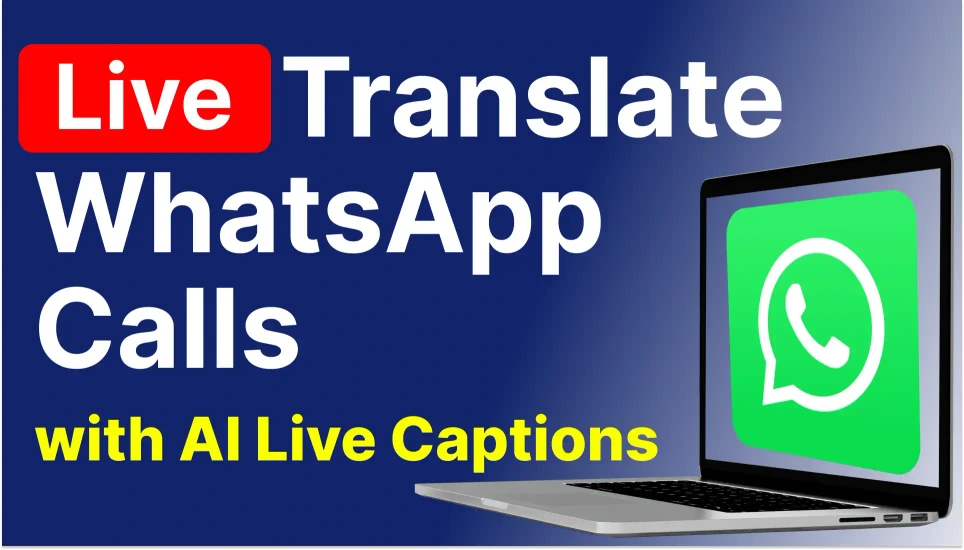
5 Steps: AI Live Translation Software for Windows
Do you need a live translator for your Windows PC?
If you need help translating your online meetings or live events..
This guide is for you!
Here you’ll learn 5 steps to get AI-powered live translated captions or audio on your Windows computer:
- Download and install Akkadu ➡️ Download Now!
- Select your languages
- Select audio source
- Share live translation (optional)
- Start translating
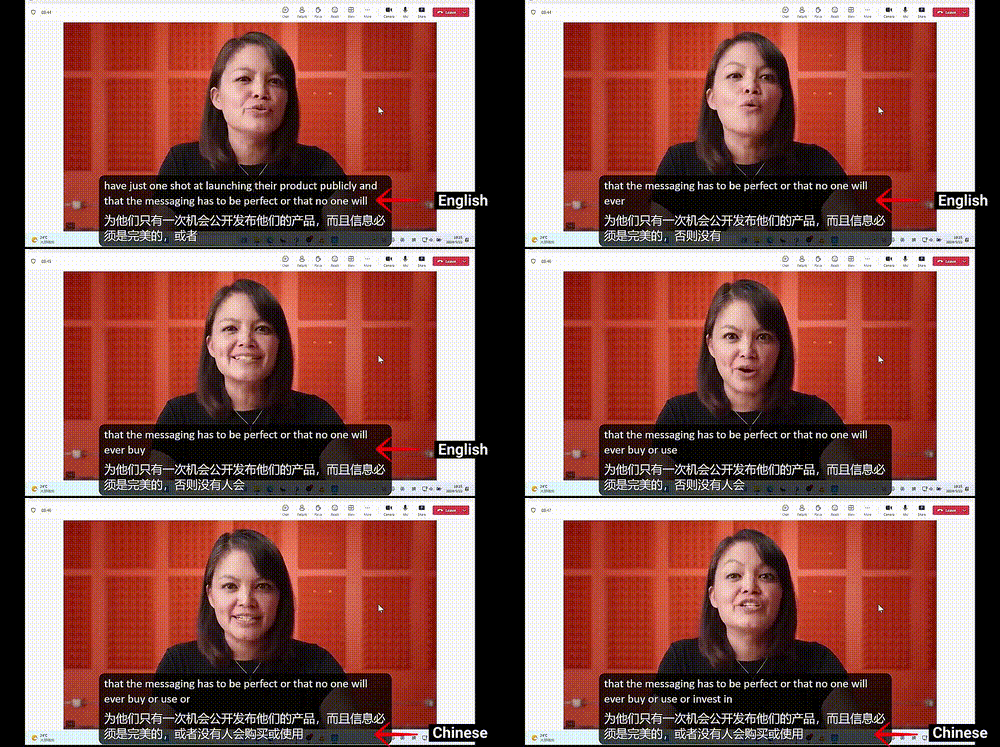
See how it works for online meetings:
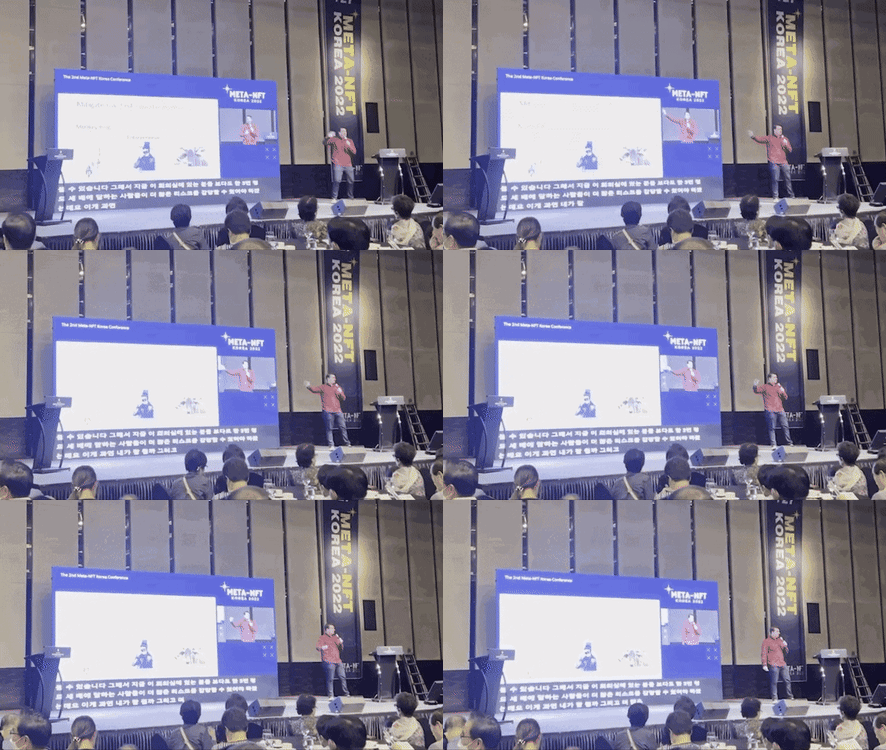
See how it works for in-person live events:
Akkadu works with ANY software on your Windows PC:
Want perfect AI translations?
Read until the end to discover two powerful features:
- Custom Terminology
- Live Corrections
Let’s get started!
5 Steps: Set Up AI Live Translation on Windows
Deploying live translation takes less than five minutes.
Follow this process to get started.
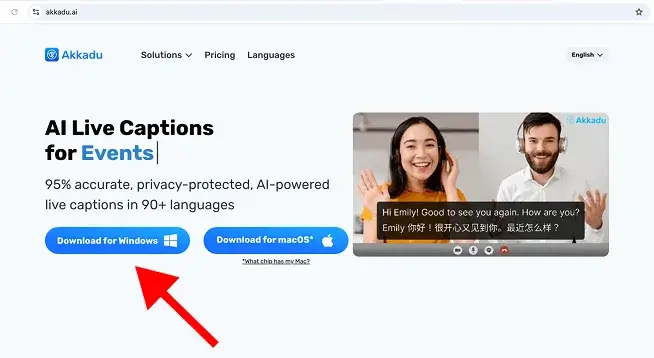
1. Download and Install
Go to Akkadu website ➡️ Download Now!
Install the Windows application directly onto your Windows PC.
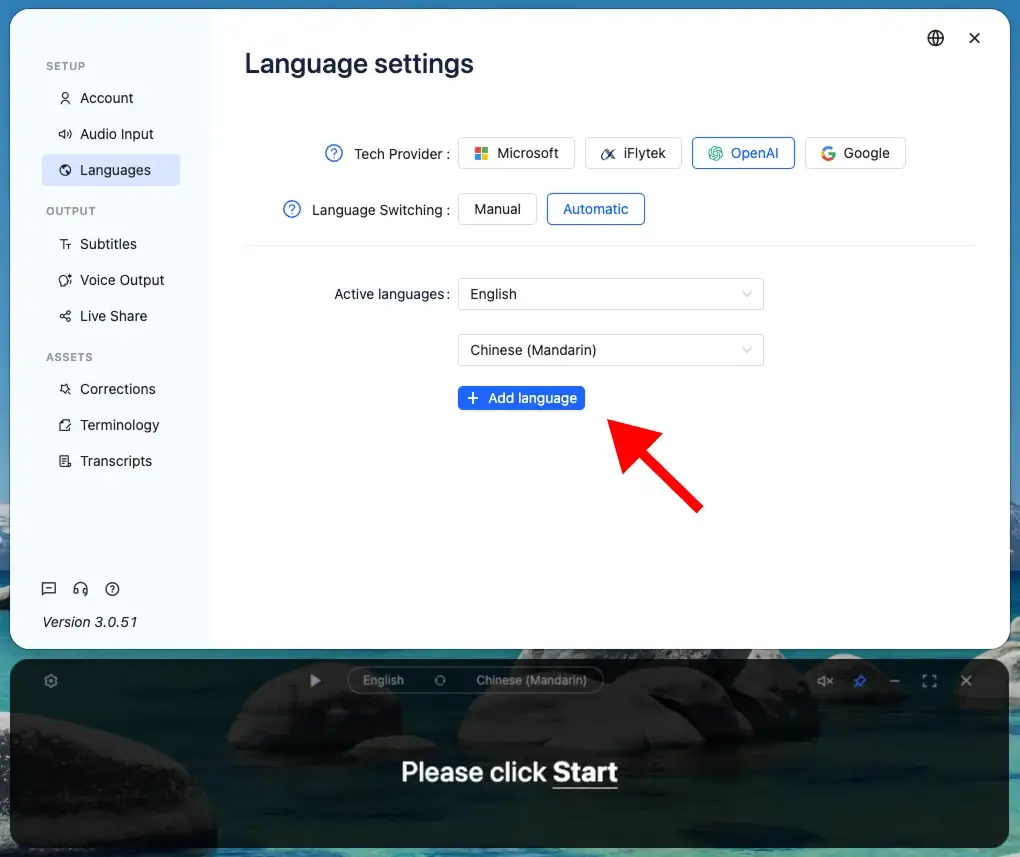
2. Select Your Languages
You can select as many languages as you need.
AI detects and switches languages automatically.
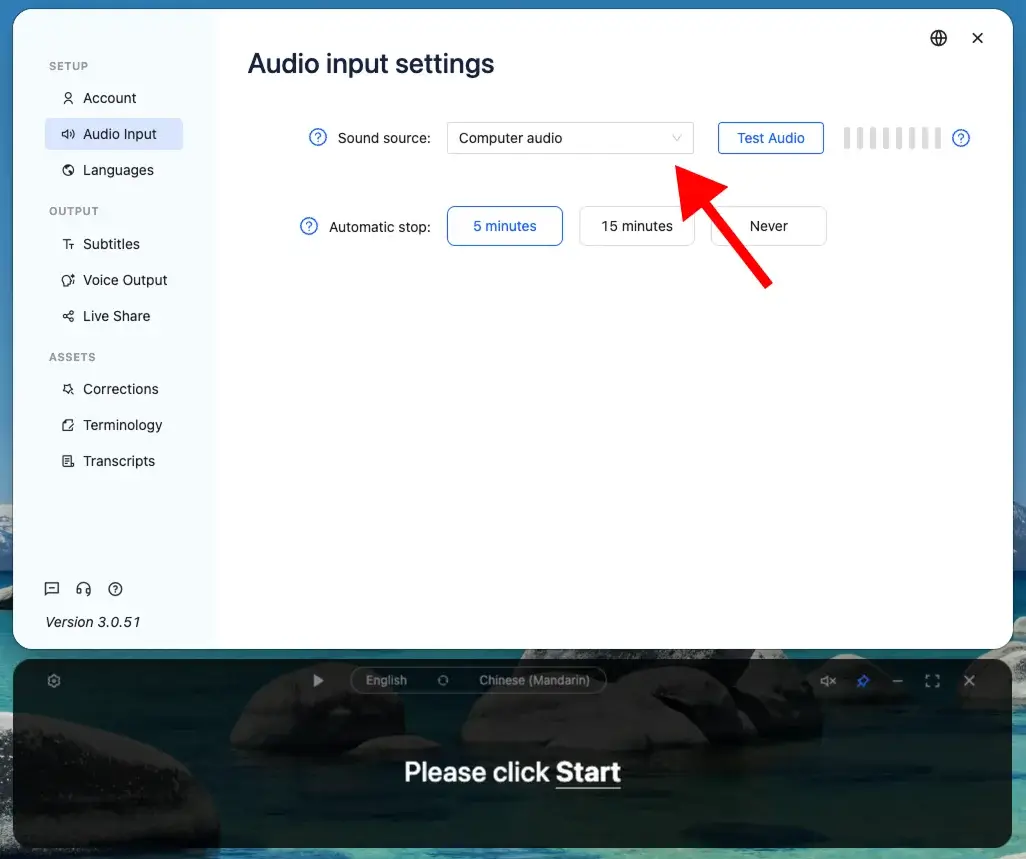
3. Select Audio Source
Select where the audio is coming from:
- Computer Audio: For online meetings (Zoom, Teams, etc.) or videos.
- Headsets: For translating your own voice.
- Microphones: For live presentations and in-person events.
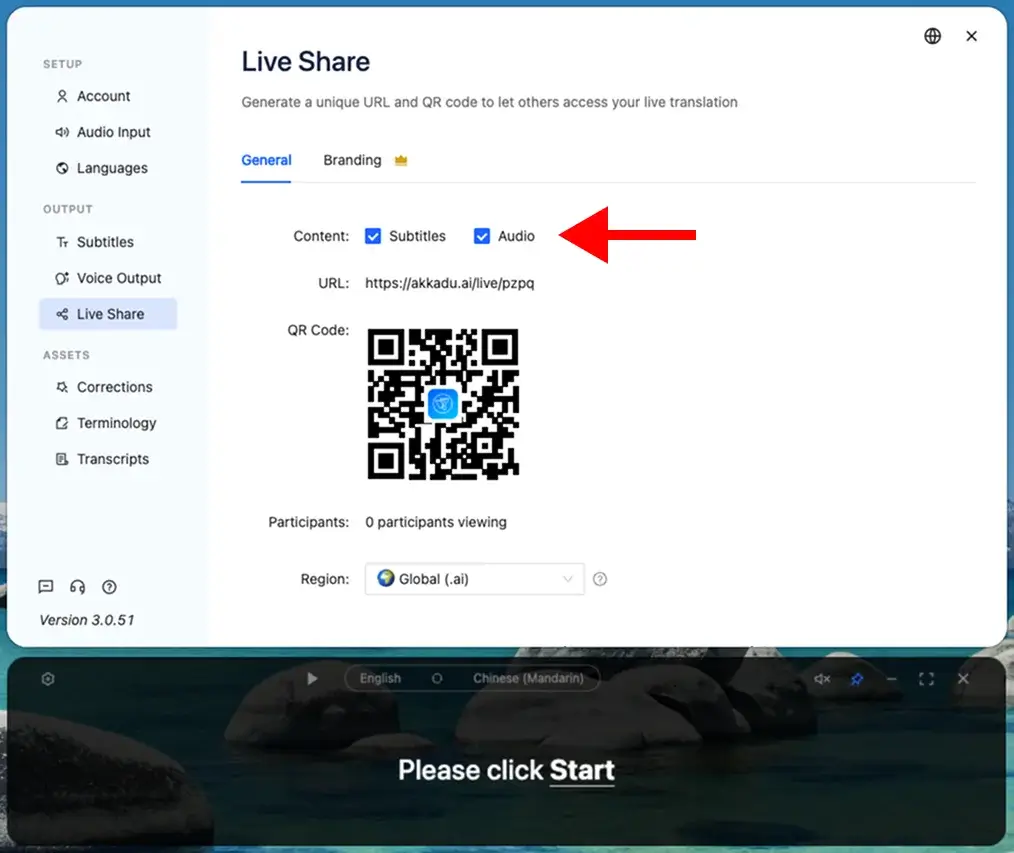
4. Share Live Translation (optional)
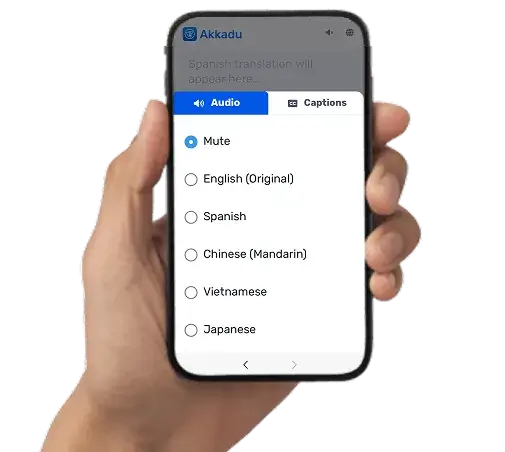
Share your unique URL or QR code to let others access your live translation.
Step 1: Choose what to share
- Captions Only
- Audio Only
- Both Audio & Captions
Step 2: Invite your audience
- Copy the link and paste it into your meeting chat.
- Show the QR code on your event screens.
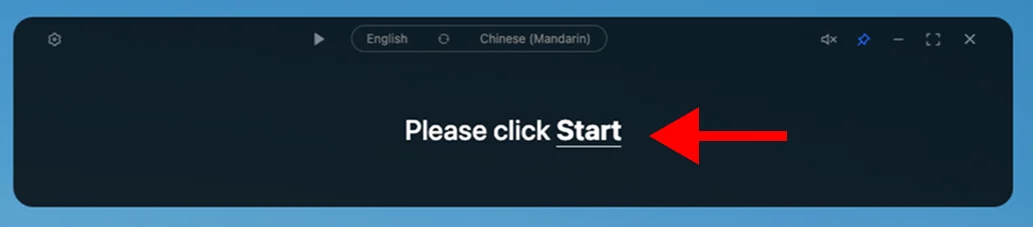
5. Start Translating
Click Start to begin real-time translation for your meeting or event.
- The live translation will appear on your screen
- Attendees can instantly read or listen from their mobile devices
That’s it!
Download Akkadu software here ➡️ Download Now!
🎁 New registrations will get 10 minutes of FREE AI live translation
Terminology
Add proper names, geographical locations, or industry terms to improve translation accuracy.
Just 3 steps:
1. Add terms manually
Go to the Terminology section in the left menu.
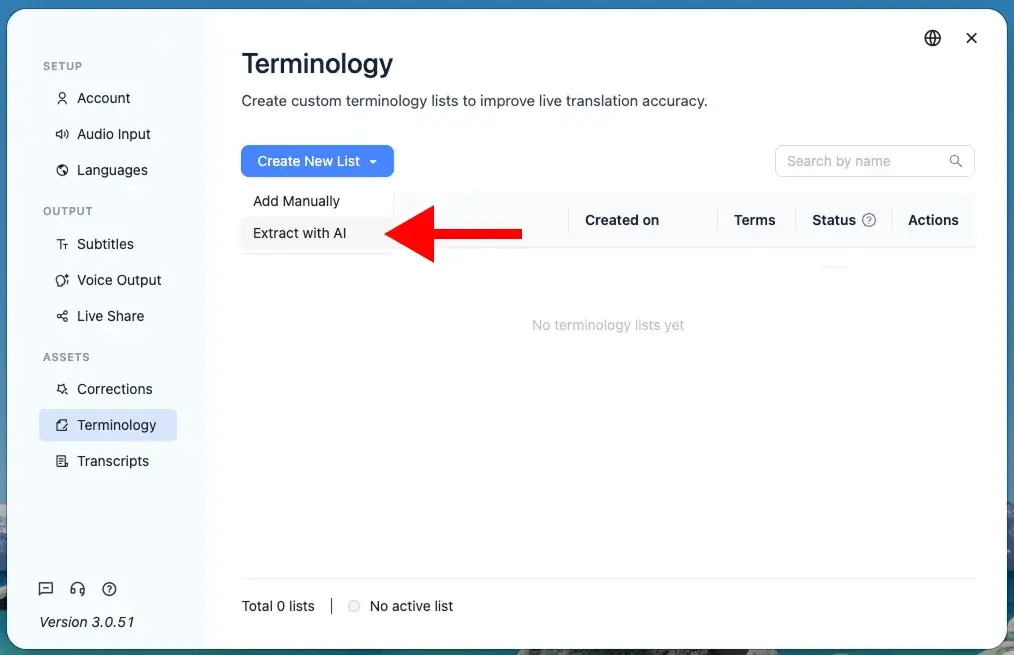
Open the Create New List dropdown and click Add Manually.
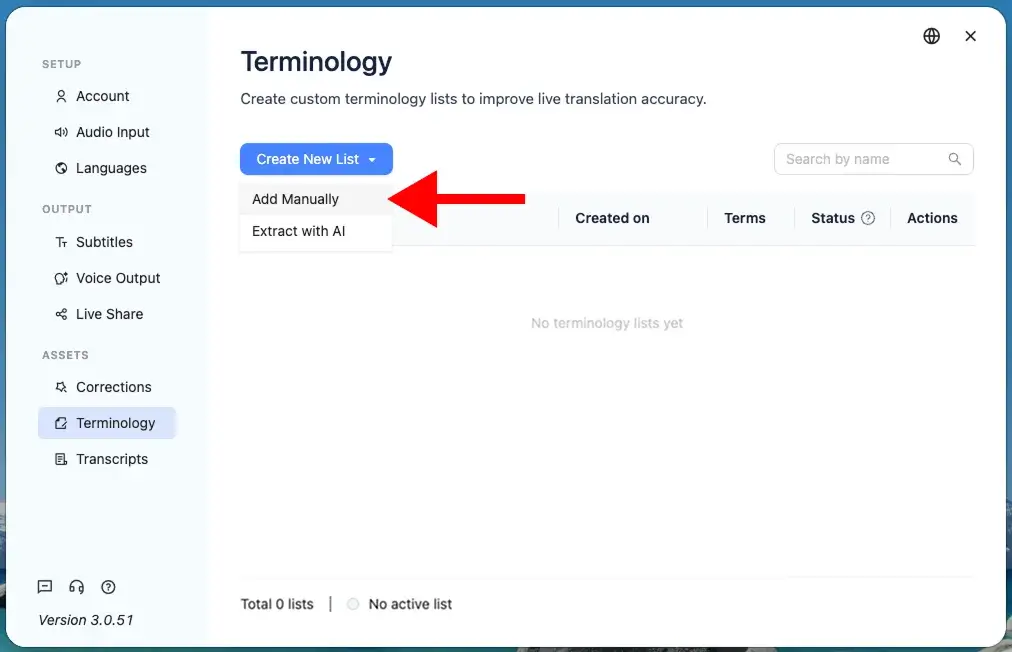
Click the blue + Add New Term button.
Type your specific term and its exact translation.
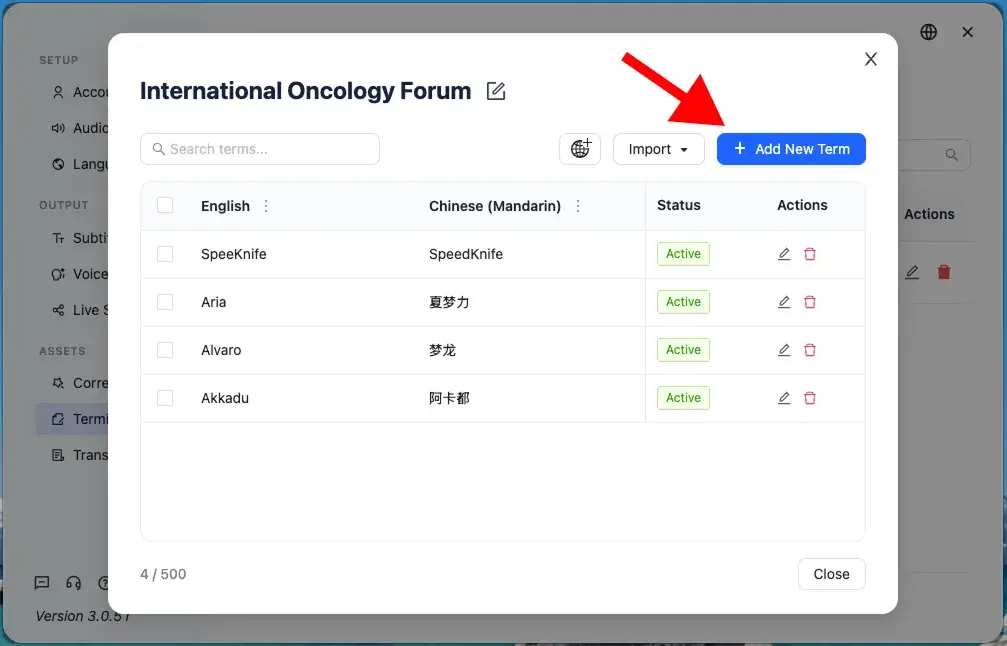
Note: If you only type the term without a translation, the AI will prioritize recognizing that exact word.
2. Import terms with AI
Go to the Terminology section again.
Open the Create New List dropdown and click Extract with AI.
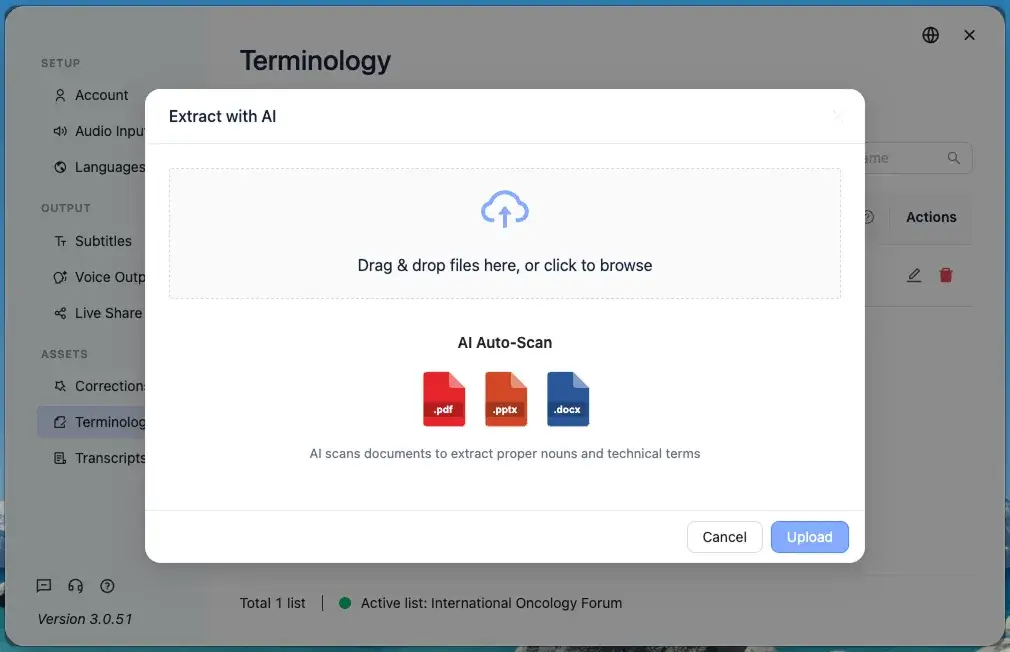
Drag and drop your documents into the upload window.
Click the Upload button.
The AI will automatically scan your files to extract technical terms and proper nouns.
3. Activate your list
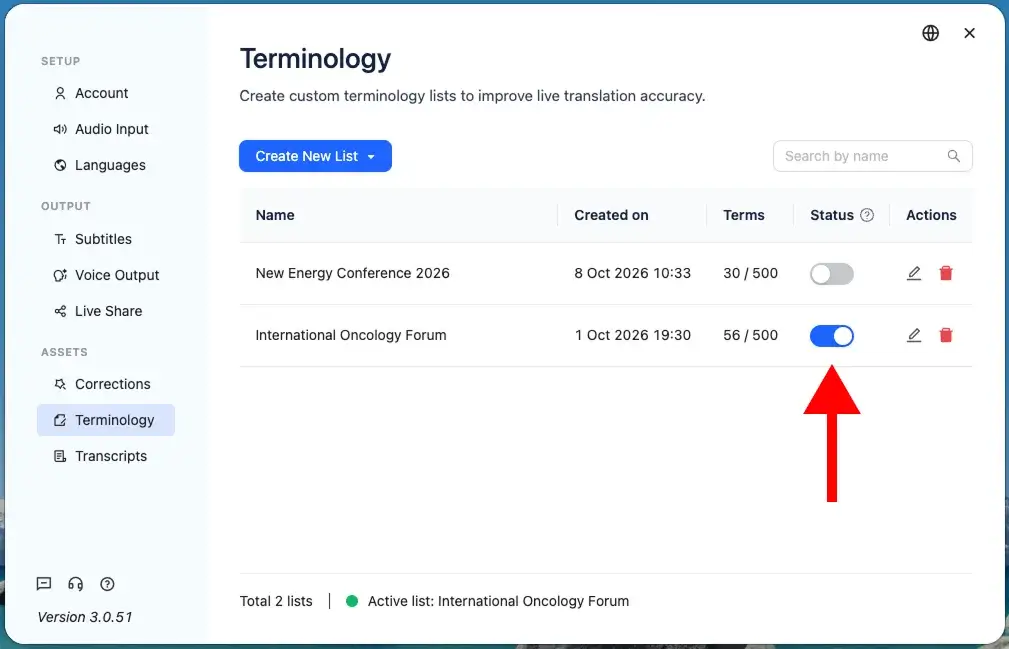
Find your terminology list in the dashboard.
Click the toggle switch under the Status column to turn it on.
Your list is now active for live translations.
That’s it!
Download Akkadu software here ➡️ Download Now!
🎁 New registrations will get 10 minutes of FREE AI live captions
Live Corrections
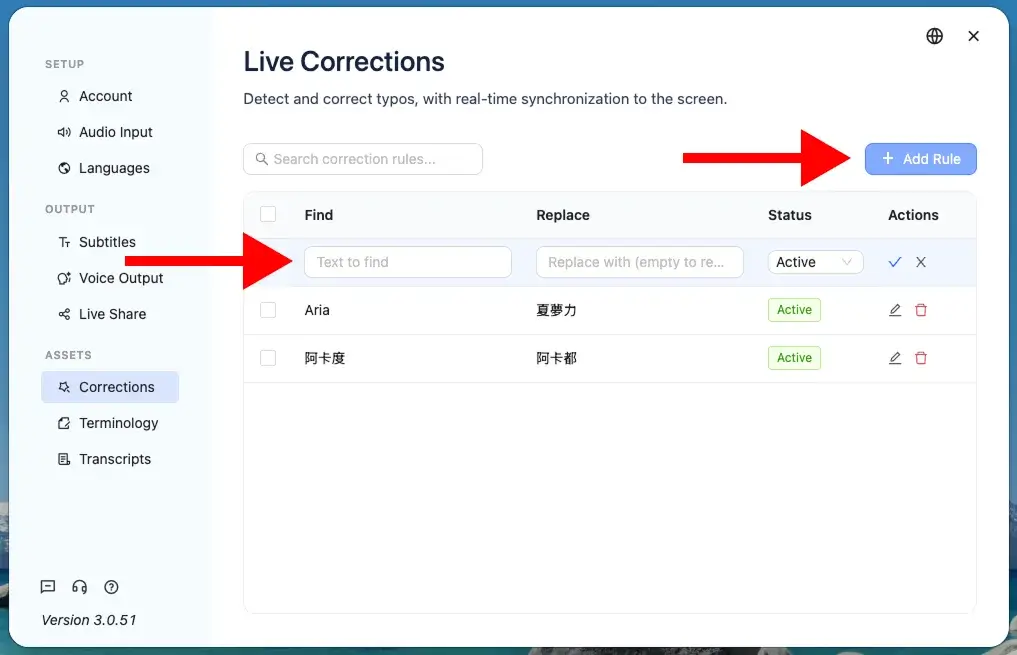
Live Corrections allow you to fix AI mistakes instantly.
Two simple steps:
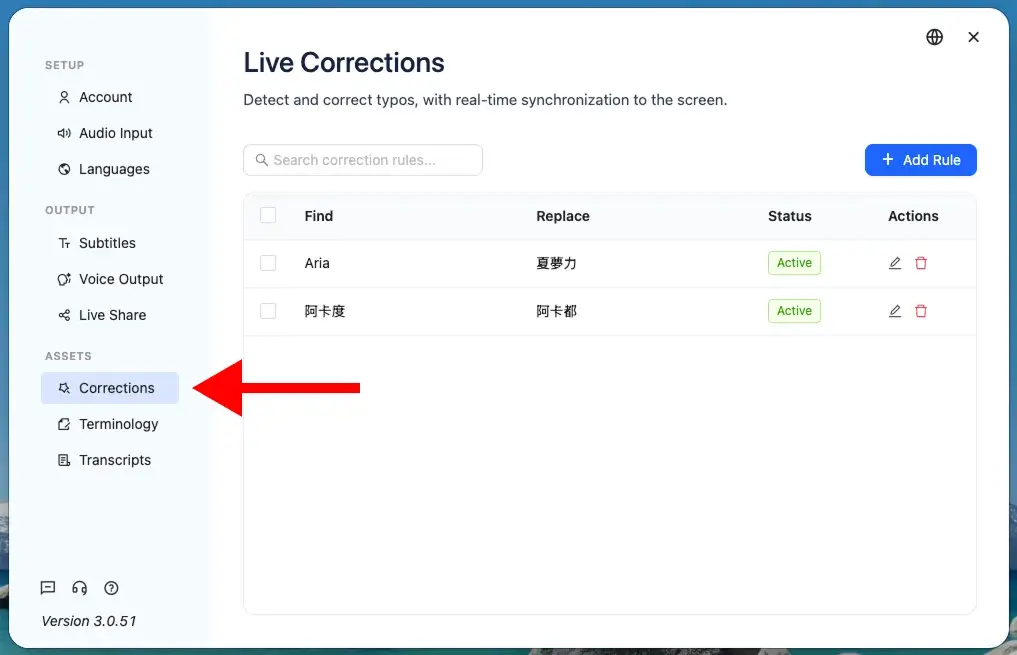
1. Open the “Corrections” section
Go to the Corrections section in the left menu.
2. Add a new rule
Click the blue + Add Rule button on the right.
- Type the mistake in the Find box.
- Type the correct word in the Replace box.
The software will automatically update the text on the screen.
Ready to try it?
Download Akkadu software here ➡️ Download Now!
🎁 New registrations will get 10 minutes of FREE AI-powered live translation
Why Akkadu is ideal for online meetings and live events?
- Can choose multiple AI engines: Google, OpenAI, Microsoft, etc.
- Ability to increase translation accuracy with custom glossaries
- Access complete transcripts and summaries after every session
- Capacity to correct mistakes in real time
- Flexible pay-as-you-go pricing model
- Attendees use their own phones (For events)
Get started today.
Download Akkadu software here ➡️ Download Now!
🎁 New registrations will get 10 minutes of FREE AI-powered live translation
Related Articles
You may also find the following articles helpful:
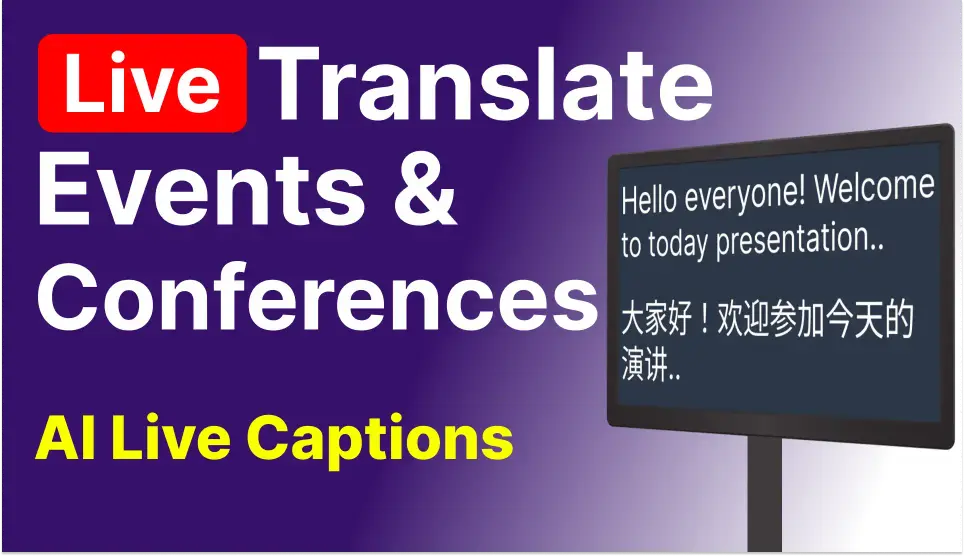
Translate Events & Conferences with AI live translation:
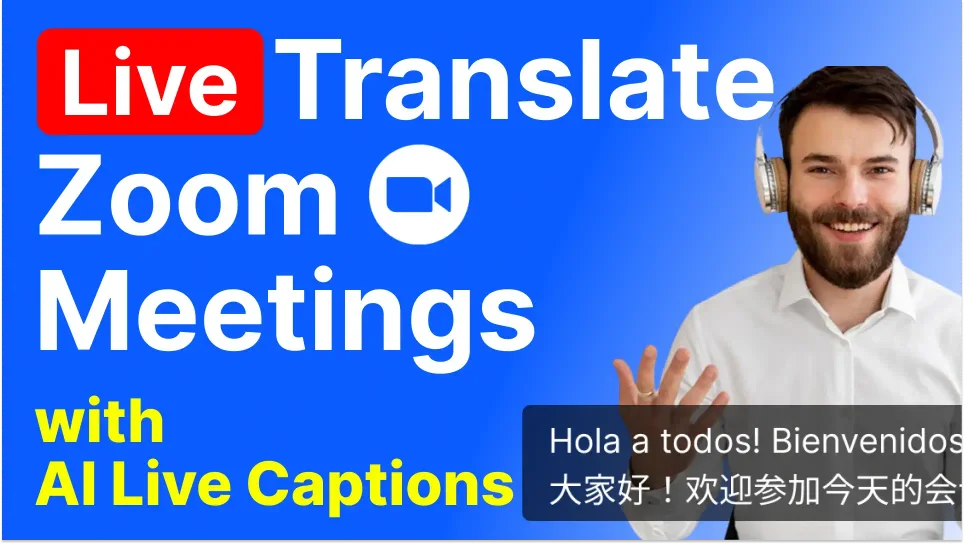
Translate Zoom Meetings with AI captions and audio:
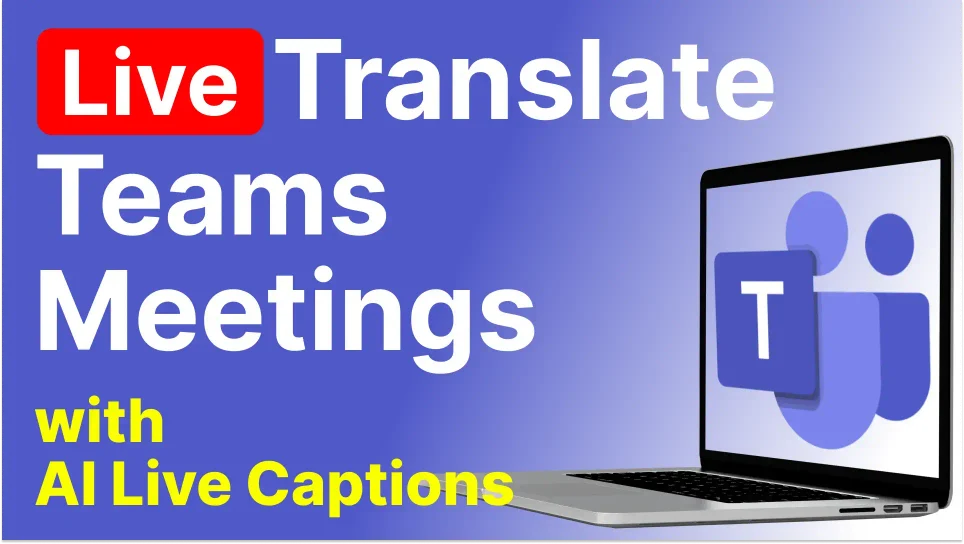
Translate Microsoft Teams Meetings with real-time AI translation:
Translate Google Meet Calls with live translated subtitles:
Translate WhatsApp Calls with AI voice and text translation: